
Using the app
The LoadCell measures how hard you pull. Impulse Train turns that into workouts, benchmarks, trophies, leaderboards and force-controlled games. This is the tour: what to set up first, what each tab is for, and how a guided session actually runs.
The headline number is impulse — force multiplied by time, in newton-seconds. It only ever adds up and never resets, so it is a lifetime record of the work you have done on the edge.
← Device quick start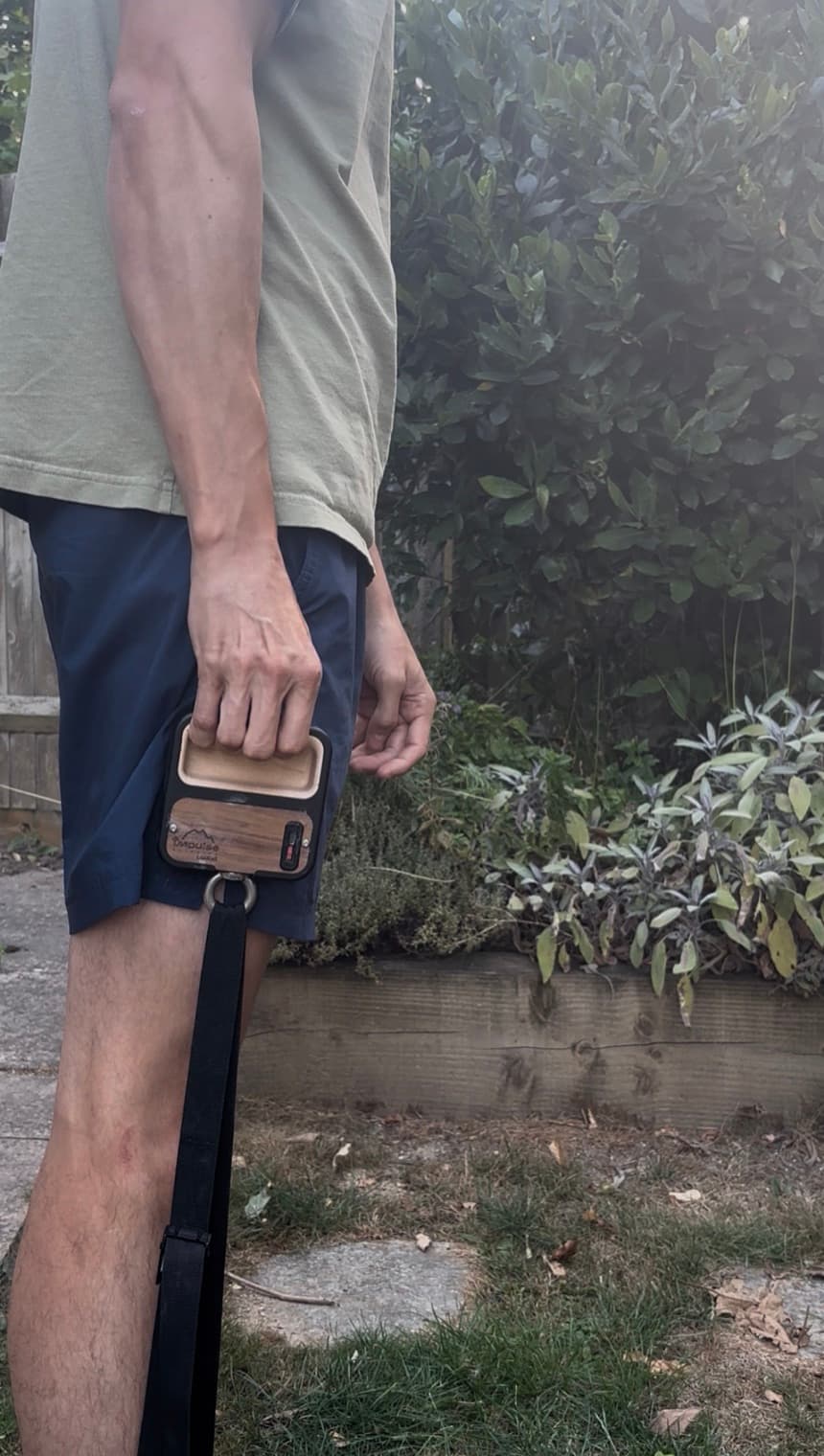
Before you start
You need the LoadCell charged with an insert fitted, the app installed, Bluetooth switched on, and Bluetooth permission granted when the app asks for it. Have your bodyweight ready too — every ranking and leaderboard figure in the app is a percentage of bodyweight, so it is the one number the app really needs.
Bluetooth is only needed for live force. Browsing protocols and plans, and everything in Profile and Social, works with the device nowhere near you.
Get the app
Impulse Train is free, and it is the only place the LoadCell’s readings go — the device on its own shows you a colour and nothing else. It is live on both iOS and Android.
The app is for the LoadCell. The Mini has no electronics in it to read, so there is nothing for the app to connect to.
First run
Three short screens: a welcome, your bodyweight in kilograms, then a four-stop tour that spotlights each of the bottom tabs in turn — Lift, Train, Game and Social — and says what it is for.
Bodyweight is skippable and can be set later on your Profile. It is worth doing now, because it is what every leaderboard figure is measured against.
Get ranked
The app then offers a quick benchmark on both hands, so it can place you on the trophy ladders straight away rather than starting you from zero. Skippable, like the rest of onboarding — the ladders simply stay empty until you test.
Signing in is optional
The screen says as much, and there is a “Continue without signing in” button underneath it. Signing in is an email address and a password, with a verification code emailed to you; forgotten passwords work the same way.
Signed in, you get your history backed up and synced across devices, plus friends, gyms, leaderboards and the feed. Signed out, everything works and stays on the phone — you just can’t see anyone else.
Connect the LoadCell
Connect Device sits in the top bar, so it is reachable from any screen. Tap it and the app scans for fifteen seconds; your device appears as “Impulse LoadCell” followed by its unit number, the same number printed on the label. Tap it, and the button changes to Disconnect with a battery indicator beside it.
If Bluetooth is off, permission was refused, or — on Android — location services are off, the app tells you which one rather than showing you an empty list. If the connection drops it says “Connection lost” and reconnects to the same device on its own, up to three attempts. Tapping Disconnect yourself is final; it won’t come back behind your back.
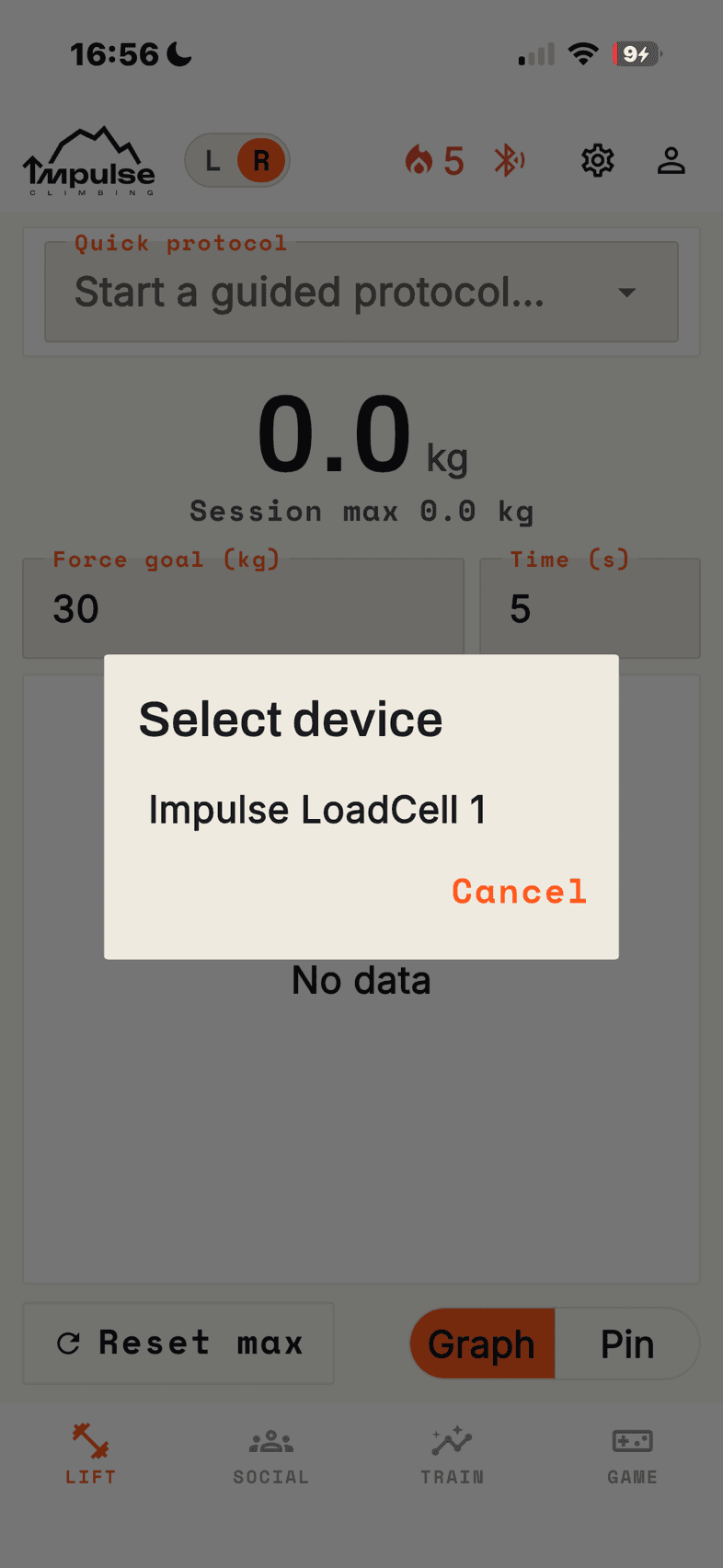
The name in the list is “Impulse LoadCell” and its unit number. Set the insert and the hand
Two app-wide selectors decide what your results are filed against, and both matter: 25 kg on a 22 mm flat edge and 25 kg on a mono are not the same fact. The insert is set in Settings → Device — 22 mm flat, 22 mm wave, or the mono / adapter setting. The hand is a Left / Right toggle in the top bar.
Everything is tracked separately per insert and per hand: trophies, graphs, personal bests, game high scores. Keep the insert setting matched to what is actually fitted and swapping edges never looks like you have lost half your strength.
The four tabs
The bar along the bottom reads LIFT · SOCIAL · TRAIN · GAME. Profile and Settings live in the top bar instead.
Lift
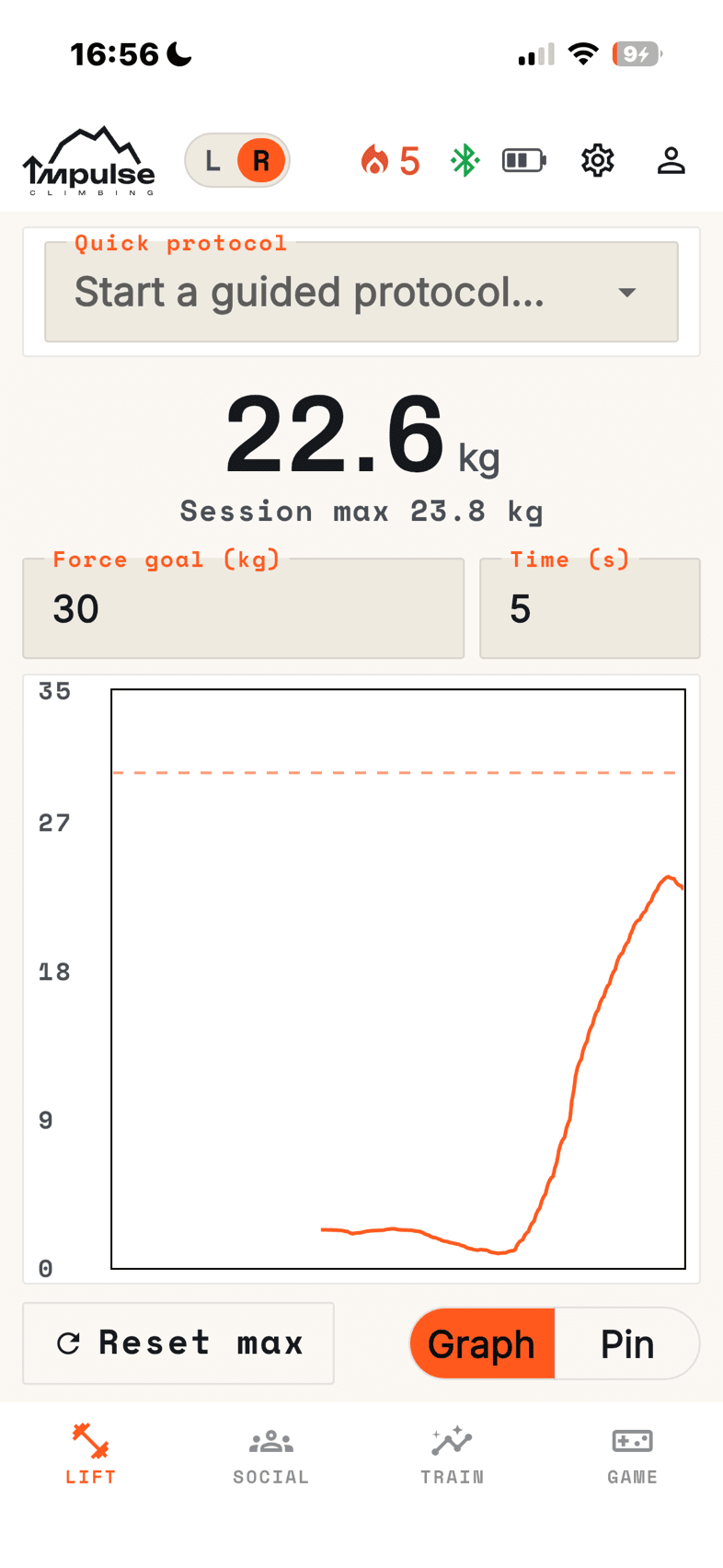
Live forceThe home screen, and the only place the load cell is actually read. A big live figure in kilograms with your session max underneath, and a Graph / Pin toggle: Graph plots force over time, Pin shows the same reading as a weight pin. There is a Reset max button, a target line you can set, and a Quick protocol launcher for starting a guided session on the spot. Freestyle holds, guided protocol hangs and all three benchmarks run from here, because this screen already owns the gauge and the target line.
Train
Plans, protocols, progressThree tabs of its own.
- Plans
- A month calendar. A plan is a schedule — which protocols happen on which weekdays, how many times a day, over a set number of weeks or open-ended. Each scheduled session is a dot coloured by how it went; tap a day to see that day’s sessions and start one. Opening a plan shows your adherence and a weight-over-time chart, one line per exercise.
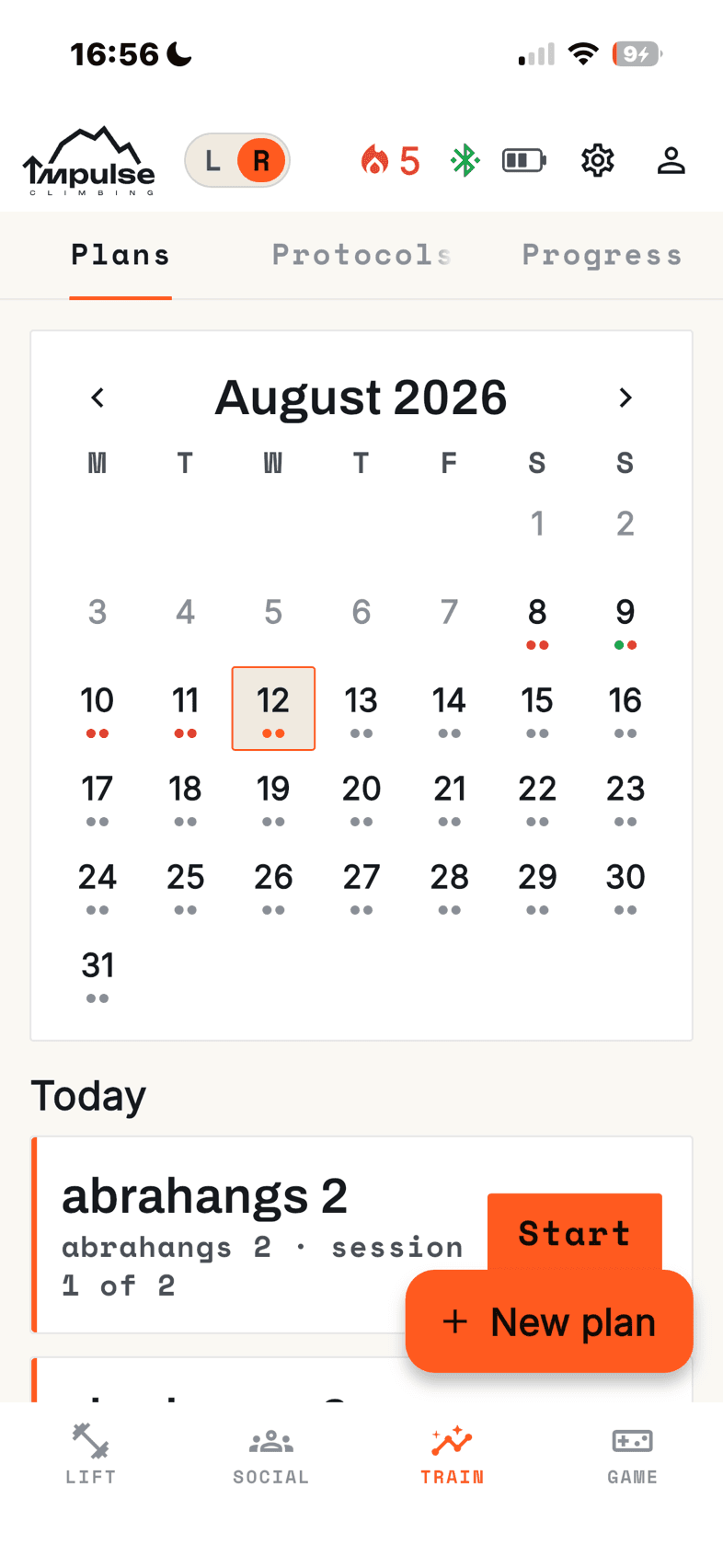
One dot per scheduled session, coloured by how it went. Tap a day to start it. - Protocols
- The library of single sessions. A protocol is a list of exercises — hangs, repeaters, rests, even a game as a warm-up step — and there are built-in ones alongside anything you build yourself. Three quick protocols can be dialled in and run immediately: Dynamic warmup, Hangs and Repeaters.
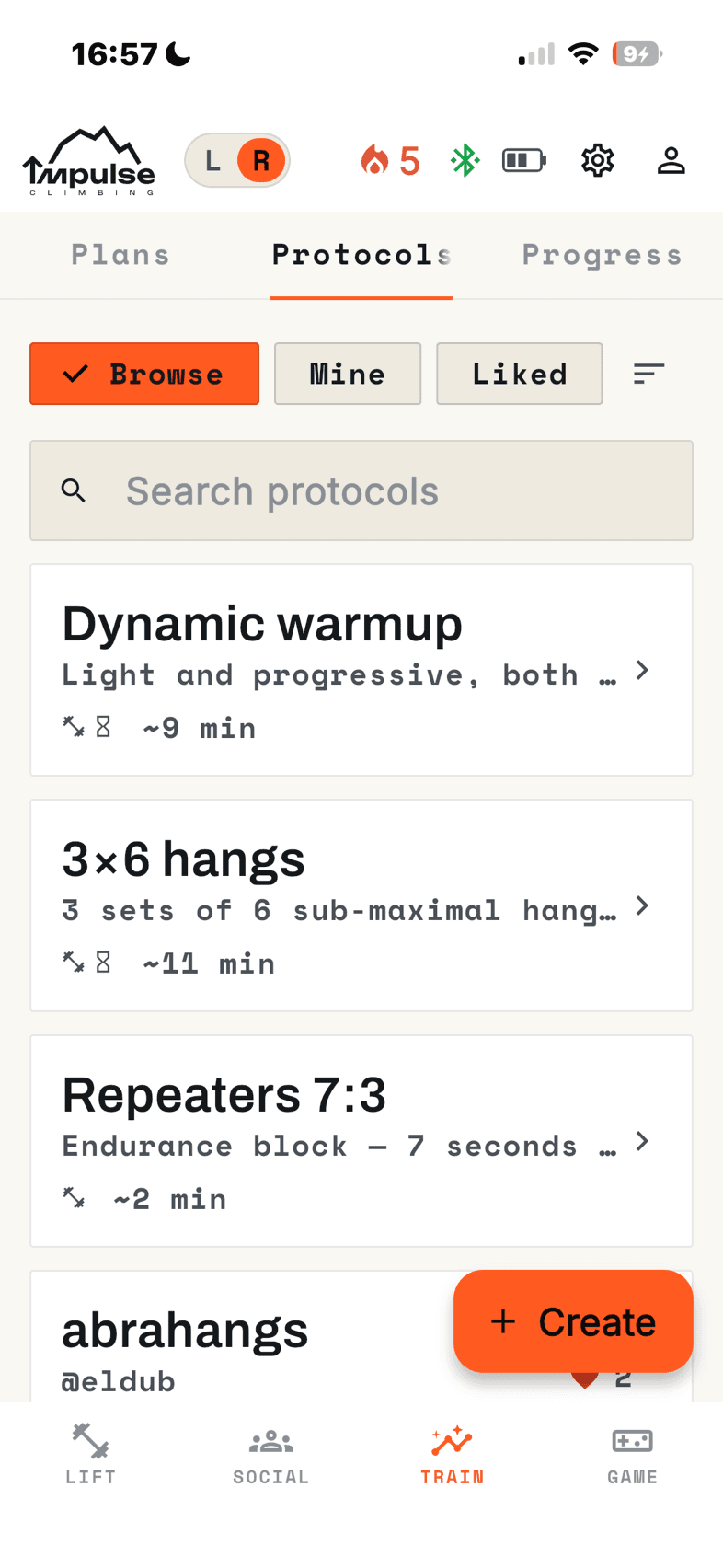
Built-in protocols and your own, each carrying its shape and a rough duration. - Progress
- Strength, Power and Endurance, each with its history chart, your current best, its trophy ladder and a Test now button.
Game
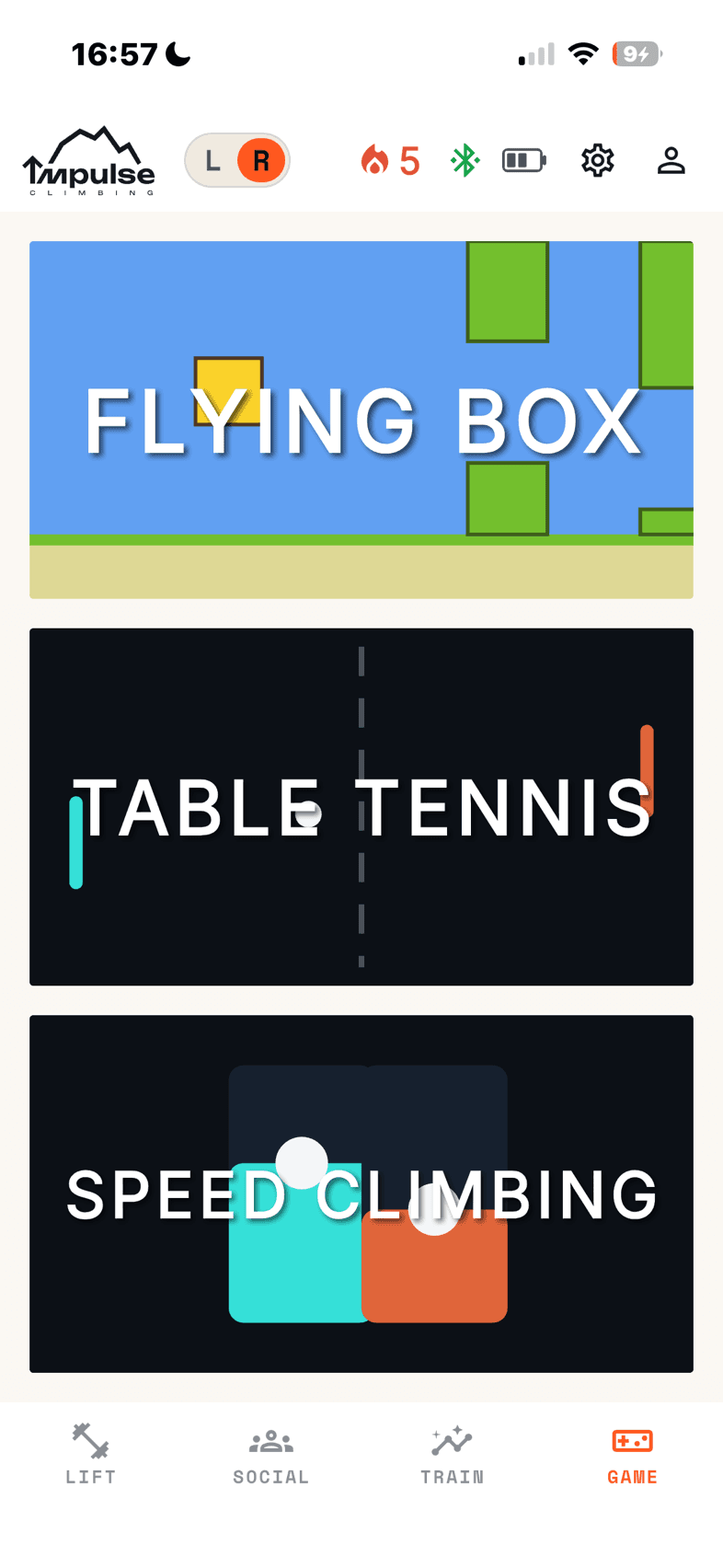
Pull to playThree arcade games driven entirely by how hard you pull. Flying Box lifts a box past obstacles and scores you on obstacles passed. Table Tennis moves your paddle with force, scores rallies, and can be played against other people. Speed Climbing races a ghost up a route against the clock. Each has five difficulty presets, which set the force window you have to hold, and its own four-rung trophy ladder — high scores are kept per game, per difficulty, per hand and per insert.
Social
Friends and gymsTwo tabs of its own.
- Friends
- Your friend list, their results, and a feed of what they have been up to.
- Gyms
- Groups you create, find in the directory, or join with a code — public gyms are listed and open to anyone, private ones are invisible to non-members and joinable only with the code. You can belong to more than one and switch between them from the bar pinned at the top, and each gym carries three tabs: Leaderboards, Activity and People. The boards run one per benchmark and one per game — Strength, Power, Endurance, Flying Box, Table Tennis, Speed Climbing — with endurance split by rep bracket and the games by route and difficulty.
Running a guided protocol
This is the core training loop, and the whole thing is hands-free by design. You are stood on the strap pulling with one arm and the phone is on the floor, so nothing here needs pressing once you have started.
Open it
Pick a protocol from the Train library, from a day on the Plans calendar, or from the quick launcher on Lift, and its start sheet opens.
Confirm the insert
If the protocol was written for a different insert than the one fitted, it asks first: switch to the one it wants, or run it on what is mounted anyway. Either way the session is recorded against what is actually mounted.
Guided mode takes over
A red-accented takeover with the bottom navigation hidden, so there is one way in and one way out.
Set the weight
Each exercise briefs you once, at its first working set, then shows a weight field: a big number with − and + buttons in plate increments, a kg / % bodyweight switch, and the weight you used last time underneath with the difference beside it — “last time 5 kg ↑ +2.5”. The app never prescribes a weight. It prescribes shape, in sets, reps and seconds, and remembers what you lifted per exercise and per insert.
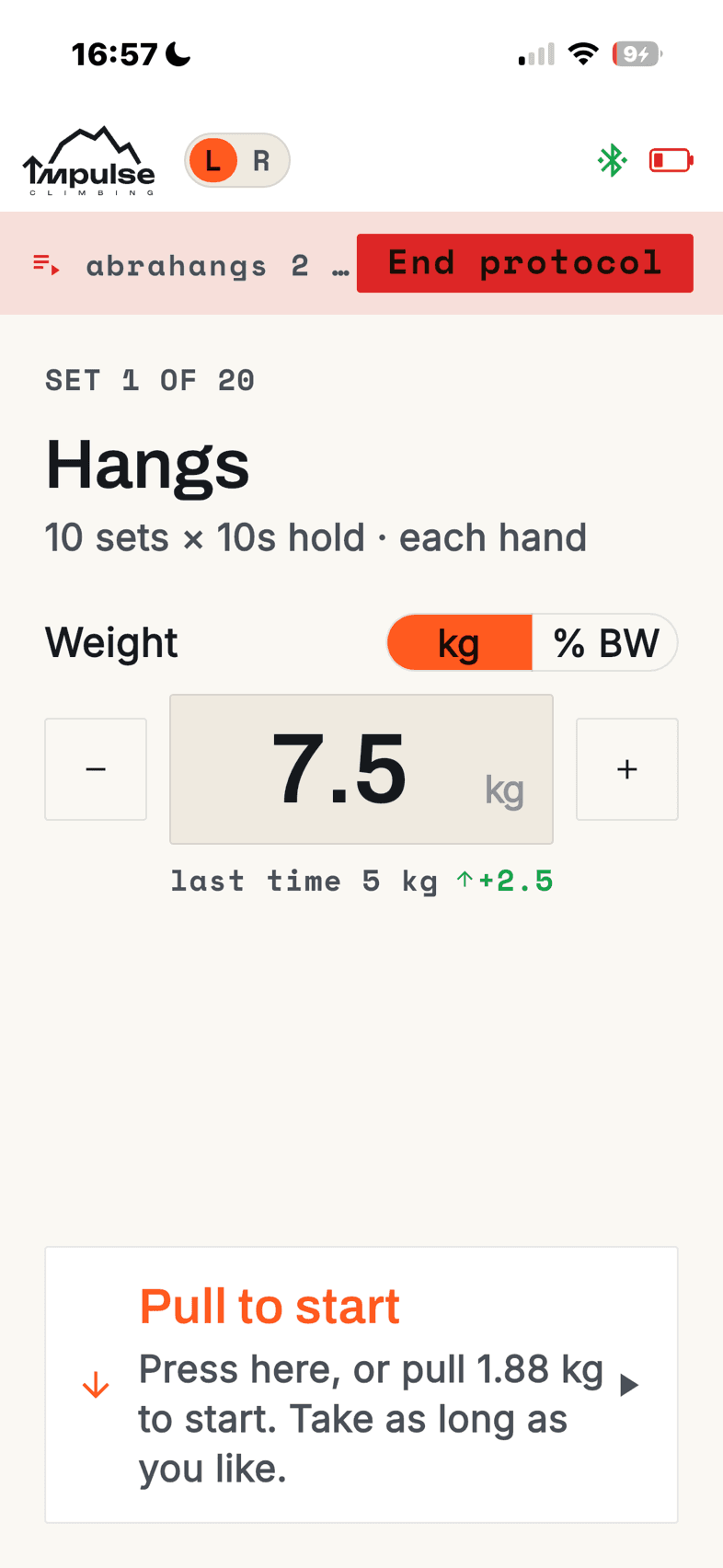
It remembers what you lifted last time. It never tells you what to lift next. Pull
The step arms itself when the cell reads empty and starts on a light pull — a quarter of the weight you set, never more than 5 kg, which is the figure the start prompt names. Brushing the edge cannot trigger a rep, and the card above the gauge counts the hold down for you. Every rep is judged live and the verdict floats up on screen — “Rep 2 of 6 — 7s held” in green, or “Rep 2 of 6 missed — came off at 4.1s” in red — so you can read it off the floor afterwards without touching the phone.
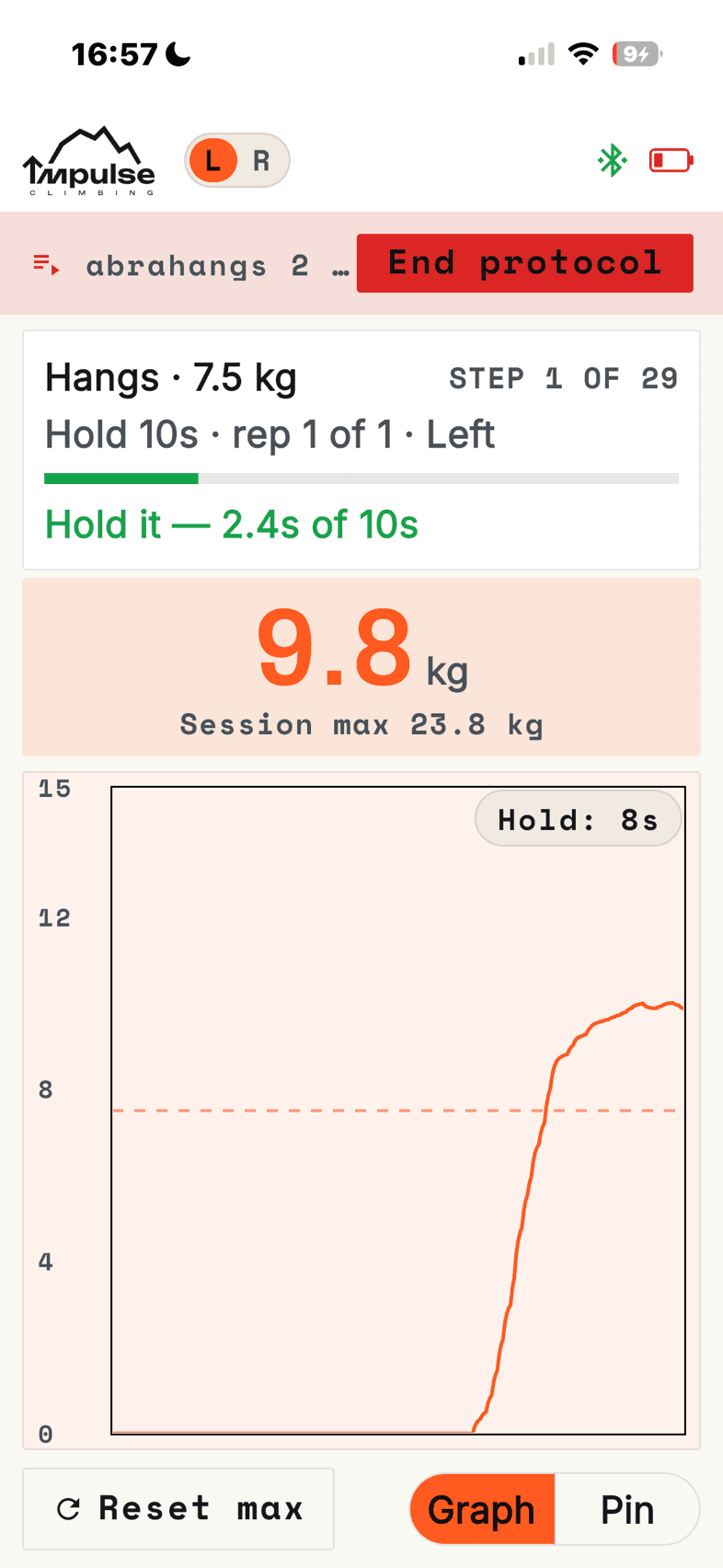
Mid-rep, hands nowhere near the phone. The card counts the hold for you. No clock can fail a rep
A rep only starts when you pull, and only ends when you finish it, come off it, or skip it by hand. Pulling short and setting back down isn’t a failure; the rep simply hasn’t started yet.
Rest
Rests count themselves down, with +30s and I’m ready buttons if you want to bend one.
Finish
You get a summary, and the weights you used are saved against each exercise ready for next time.
Benchmarks
Three tests, each launched with Test now from its Progress sub-tab. They run in a blue-accented Testing takeover, so there is no confusing one with a training session.
Strength
- What you do
- Arm it and pull. It starts on your first pull past 5 kg and runs until you stop — one all-out hang or a series of surges, your call.
- How it scores
- The heaviest load you held for an unbroken 5 seconds anywhere in the trial, as a percentage of bodyweight. A brief spike scores nothing; it has to be held.
Power
- What you do
- One explosive pull.
- How it scores
- Rate of force development, relative to bodyweight.
Endurance
- What you do
- Pick a rep bracket — 5, 10 or 20 — and a load, then work 7 seconds on, 3 seconds off.
- How it scores
- The load you completed the full bracket at, as a percentage of bodyweight. Only a complete bracket scores, though a short attempt still logs the work.
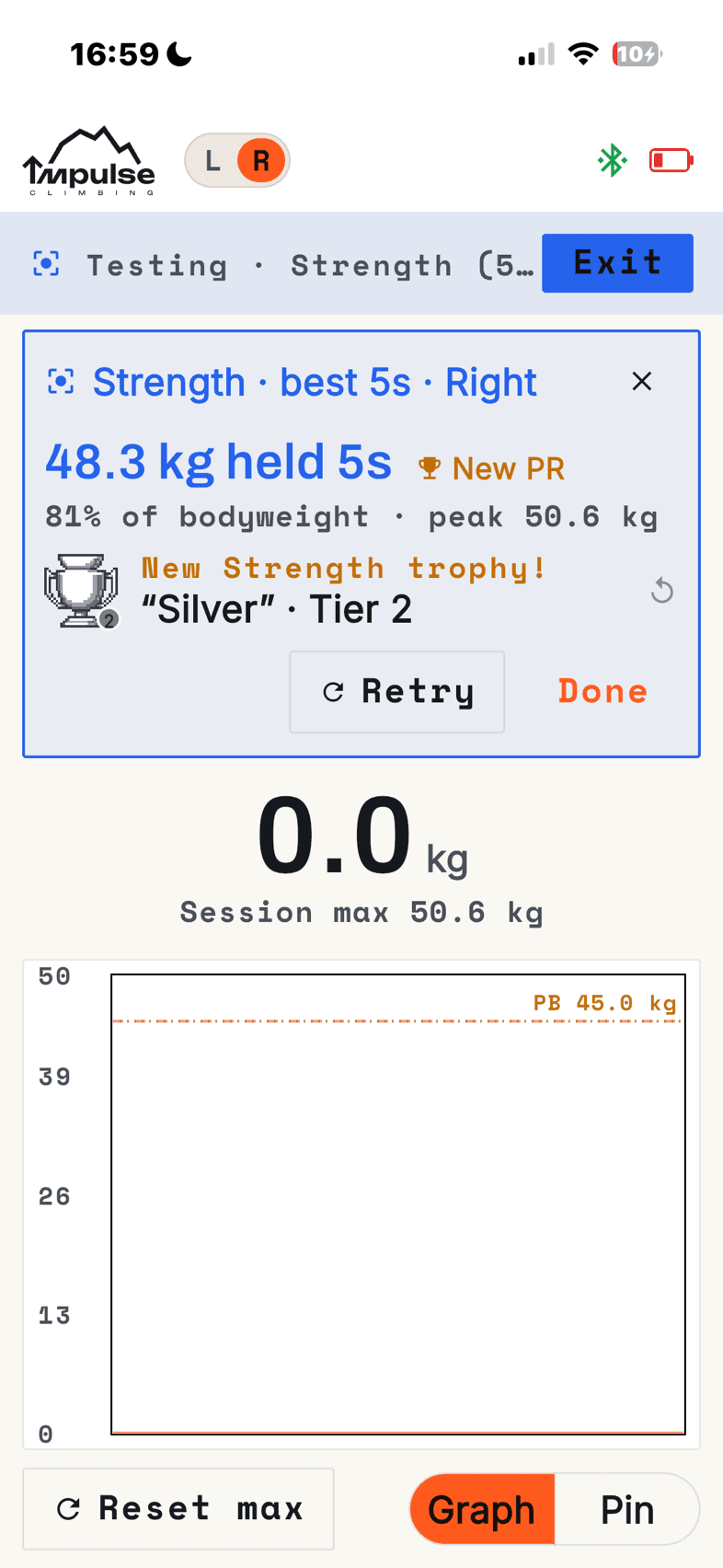
The three endurance brackets are separate tests with their own ladders and leaderboards — they never mix. Every result is normalised to your current bodyweight, so updating your bodyweight re-ranks you everywhere at once.
Trophies and progress
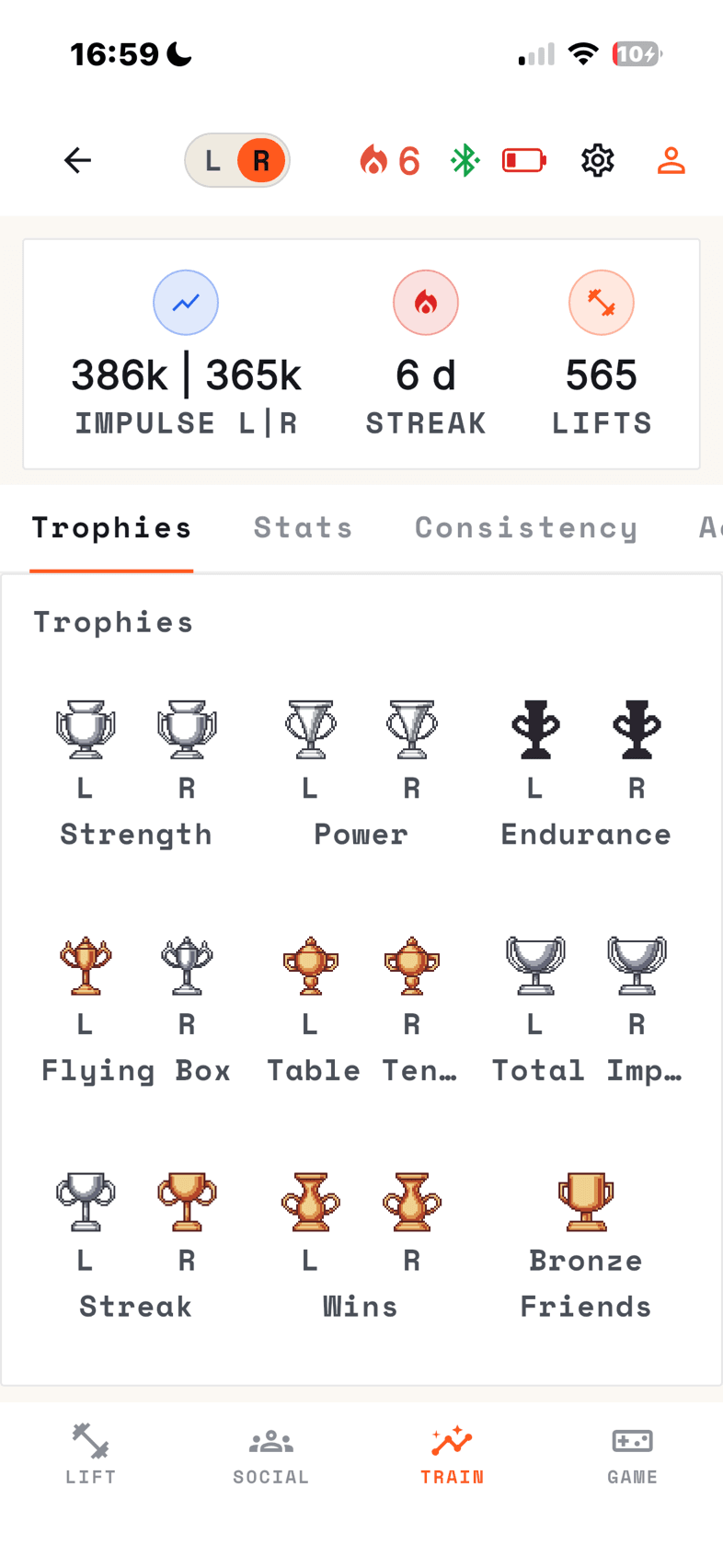
Every training category, every game, lifetime impulse, and your streak, wins and friends all have a four-rung trophy ladder — bronze, silver, gold, platinum, drawn as pixel-art medals, with locked rungs shown as silhouettes. Unlock one and the medal strikes centre-screen, then flies into your profile button and leaves a dot there so you don’t miss it.
Trophies also unlock cosmetics other people can see on leaderboards and in the feed: titles, name colours, badges, and avatar frames earned by collecting medals across the whole grid.
Your Profile has four tabs — Trophies, a grid of every category’s current tier with left and right hand side by side; Stats; Consistency, a heatmap of your training; and Achievements. Your lifetime impulse, current streak and total lifts sit across the top of all four, impulse counted separately for each hand. The grid follows whichever insert is set in Settings → Device rather than carrying a switcher of its own — though the streak and wins ladders are the same on every insert, since neither depends on which edge you were pulling on.
Settings
- Device — which insert is fitted.
- Appearance — light, dark or automatic.
- Account — delete your account and all the data associated with it. Signed-in users only, for the obvious reason.
If something’s off
The app can’t find my LoadCell
Check Bluetooth is on and the app has Bluetooth permission; on Android, location services may need to be on as well. The scan gives up after fifteen seconds, so tap Retry. The device advertises as “Impulse LoadCell” with its unit number — and if it has been sitting untouched for ten minutes it is asleep, which hides it from the scan entirely. Pull on it to wake it, then scan again.
It disconnected mid-set
The app reconnects on its own. Live force stops updating while it is out rather than holding a stale number on screen, so a frozen reading is the one thing it won’t show you.
My numbers dropped after I changed insert
They didn’t. Every result is tracked separately per insert, so you are looking at a different edge’s history — set the fitted insert in Settings → Device to see its own.
My leaderboard position moved and I didn’t test
Rankings are percentages of bodyweight and recompute live, so changing your bodyweight re-ranks you everywhere automatically.
What weight should I be lifting?
The app won’t tell you, and that is deliberate: it prescribes sets, reps and seconds, and remembers what you actually lifted so it can prefill it next time. The number is yours to choose.
Do I need an account?
No. Signing in adds cloud backup, friends, gyms and leaderboards; everything else works signed out, on the phone.
Is there a desktop or web version?
No — Impulse Train is a phone app, free on iOS and Android.
The device itself is misbehaving
Unlit LED, sleep and waking, charging, and what the colours mean are all on the device quick start.
Still stuck? email us and tell us what the app is doing — we read every one.